

OResults Connector
OResults Connector watches a folder on your computer and uploads each IOF XML start list or result list to OResults when your timing software creates or saves it there.
Before you begin
Section titled “Before you begin”- The event’s API key. See Connect your software with the API key on the Upload start lists and results page.
- Your timing software set to export the start list and results as IOF XML files (
.xml) into one folder.
Send data to OResults
Section titled “Send data to OResults”-
Download OResults Connector from Releases on GitHub and start it.
-
Paste the event’s API key into API key.
-
Select the XML files field and pick the folder your timing software exports to.
-
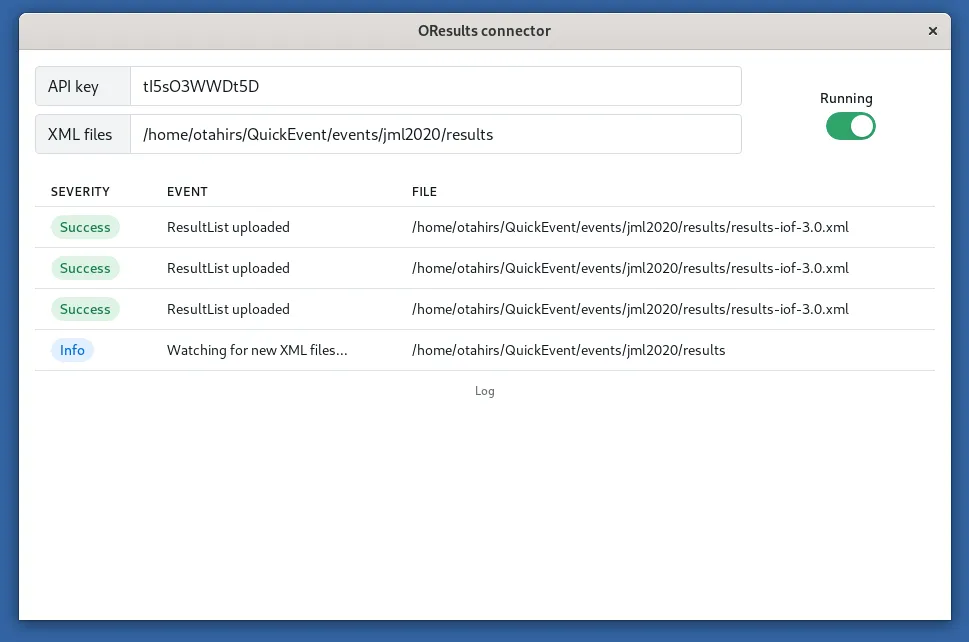
Turn on the switch, so it reads Running. The log shows Watching for new XML files…, then a Success line for each file uploaded, StartList uploaded or ResultList uploaded.
-
Save or export the start list from your timing software. A file already in the folder uploads only once it is saved again.
-
Check that the runners arrived, as the last step of Connect your software with the API key describes.
This is based on our best knowledge of the software; later versions may have changed. If something behaves unexpectedly, contact us.
Troubleshooting
Section titled “Troubleshooting”Send data to OResults
Section titled “Send data to OResults”invalid api key, followed by the key, in the log: the key in API key belongs to no OResults event. Copy it again from Automation on the event’s Event & Access page and paste it into API key.
Unrecognized file type: the file is XML, but not an IOF XML start list or result list, and OResults Connector uploads nothing else. Export the start list or results as IOF XML. Upload courses by hand, as described in Upload maps and courses.
The switch reads Stopped after you changed the API key or the folder: OResults Connector stops watching whenever either changes. Turn the switch on again.