

QuickEvent
QuickEvent uploads the start list to OResults when its OResults service starts, and the results at a set interval. While the service runs, it also sends a runner’s changes after readout and after the runner is saved.
Before you begin
Section titled “Before you begin”- The event’s API key. See Connect your software with the API key on the Upload start lists and results page.
- The event’s Start date, Start time and Timezone set to those of your competition, under Event info on the event’s Event & Access page.
- For a multi-day event: one OResults event per stage, each with its own API key. QuickEvent keeps one key per stage, so paste each stage’s key with that stage open in QuickEvent.
Send data to OResults
Section titled “Send data to OResults”-
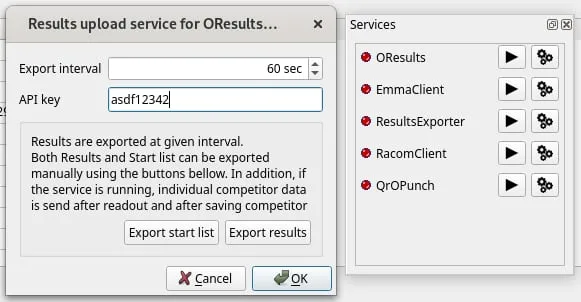
In QuickEvent’s Services panel, select the settings button next to OResults.
-
Paste the event’s API key into API key.
-
Set Export interval, how often QuickEvent uploads the results. To upload a changed start list while the service runs, select Export start list in the same dialog.
-
Select OK, then start the service with the ▶ button next to OResults.
-
Check that the runners arrived, as the last step of Connect your software with the API key describes.
This is based on our best knowledge of the software; later versions may have changed. If something behaves unexpectedly, contact us.
Troubleshooting
Section titled “Troubleshooting”Send data to OResults
Section titled “Send data to OResults”Times from QuickEvent are off by whole hours or days: QuickEvent sends each changed runner’s start time as a time of day on the stage’s date, and OResults reads it as a local time on the event’s Start date, in the event’s Timezone. One of the two differs from your competition. Correct Start date and Timezone under Event info on the event’s Event & Access page and select Save changes. Runners QuickEvent already sent keep their old times until QuickEvent sends them again.