

Connect your GPS watch
Connect your watch once and every GPS run it records arrives on your Activities page without an upload. Garmin and Polar watches connect directly, from the Garmin Connect and Polar rows on the GPS watch page. Any other watch connects through intervals.icu, a free training log that Coros, Suunto and Wahoo watches upload to; the page lists the brands OResults can’t connect directly yet under Can’t connect directly yet. What happens to a run after it arrives is in Put your run in the Aftershow.
A watch connected directly and also linked in intervals.icu sends each run both ways. OResults imports it once, so you can connect both.
Connect your watch directly
Section titled “Connect your watch directly”- In OResults, open your account menu (the avatar at the top right; on a phone, Account in the menu) and choose GPS watch.
- In your watch brand’s row, select Connect (Connect directly when your runs already arrive through intervals.icu). OResults sends you to that brand’s sign-in.
- Sign in with your account at that brand and approve access. If it says Connection cancelled or This connection link has expired or didn’t start here. Start it again from GPS watch., select Back to GPS watch and connect again. If it says the account is already linked to another OResults account, log in to that other OResults account and open the ⋯ menu on that brand’s row of its GPS watch page, select Disconnect…, then Confirm. If it says the brand didn’t let us register your account, do what the rest of the message asks at that brand, then connect again.
- Back on GPS watch, check that the row shows Connected and the date you connected.
New runs arrive shortly after your watch syncs with the brand’s app. Whether runs recorded before you connected can come in depends on the brand: see Import past runs.
Connect through intervals.icu
Section titled “Connect through intervals.icu”Before you begin:
- An account at intervals.icu. It is free, with no payment and no trial.
- Your watch uploading to intervals.icu: in intervals.icu, open Settings → Connections and tick Download activities on your watch’s card. Link the watch there directly, not through Strava. OResults cannot read runs that reached intervals.icu from Strava.
- In OResults, open your account menu and choose GPS watch.
- In the Other watch row, select Set up, then Connect intervals.icu at the end of its steps. OResults sends you to intervals.icu.
- Approve access on the intervals.icu screen. OResults reads your activities, and your intervals.icu settings to check which watch you have linked. If it says Connection cancelled or This connection link has expired or didn’t start here. Start it again from GPS watch., select Back to GPS watch and connect again. If it says This intervals.icu athlete is already linked to another OResults account. Disconnect it there first, then try again., log in to that other OResults account and open the ⋯ menu on the intervals.icu row of its GPS watch page, select Disconnect…, then Confirm.
- Back on GPS watch, check that the intervals.icu row shows Connected and your intervals.icu athlete id.
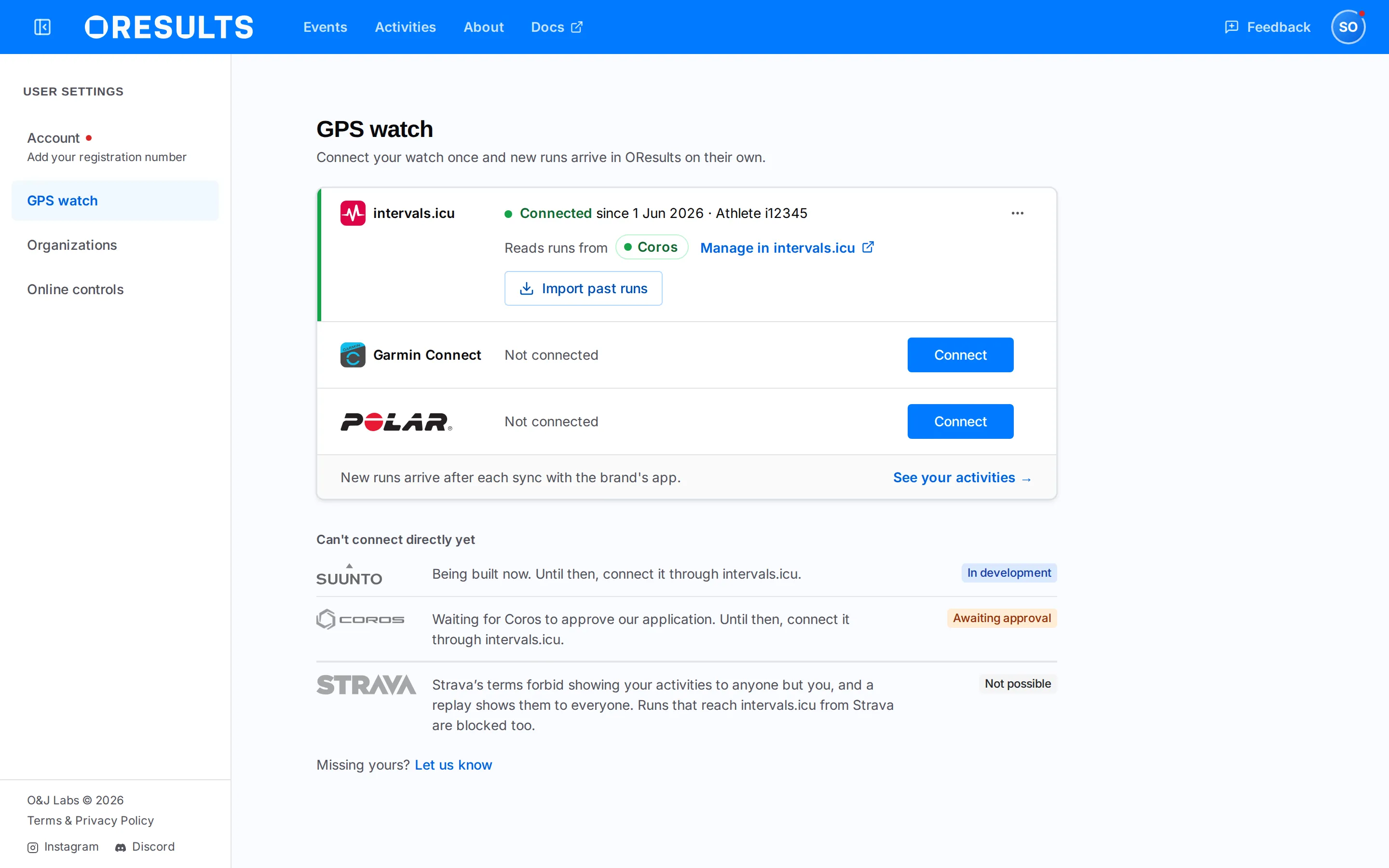
New runs arrive shortly after intervals.icu finishes processing them, with the name they have in intervals.icu. Runs recorded before you connected need a one-off import.
Import past runs
Section titled “Import past runs”A service that shares runs from before you connected offers Import past runs on its row. Where the button is greyed out, the service shares only new runs, and the row says so: upload earlier runs as described in Upload a run.
- On the service’s row, select Import past runs.
- Pick the first day to import from. The picker opens one week back. Where the service limits how far back it shares, the dialog says so, and an earlier day brings in nothing more.
- Select Import. The message Import started says how many runs OResults queued. They appear on your Activities page one by one as OResults processes them. If it says No GPS activities found in that range., pick an earlier day. On intervals.icu, also check that your watch is linked there directly, not through Strava.
Troubleshooting
Section titled “Troubleshooting”Connect your watch directly
Section titled “Connect your watch directly”Needs reconnect (GPS watch needs reconnect on Activities): the brand no longer accepts OResults’ access, or no longer shares your activities with it, so no new runs arrive. Select Reconnect on the brand’s row and allow sharing your activities; runs already imported stay.
Connect through intervals.icu
Section titled “Connect through intervals.icu”Needs reconnect (GPS watch needs reconnect on Activities): OResults can’t read your activities, so no new runs arrive. Select Reconnect and approve access to your activities; runs already imported stay.
GPS watch isn’t syncing (on Activities): intervals.icu has no watch it downloads your runs from. The GPS watch page names the cause:
- No watch linked
- Sync off for Garmin (or your watch’s brand): the watch is linked, but Download activities is not ticked.
- Only Strava linked: Strava is your only watch link, and OResults can’t read the runs it sends.
Select Open intervals.icu connections and tick Download activities on your watch’s card. Back on GPS watch, the new state shows straight away; Activities follows.
Can’t check your watch link: you connected before OResults could check your watch link. Select Reconnect and approve again; runs already imported stay.
Couldn’t check which watch is linked: intervals.icu did not answer. Select Try again.
A run that reached intervals.icu from Strava never arrives: intervals.icu does not let other apps read runs it received from Strava. Link your watch in intervals.icu under Settings → Connections so later runs come from the watch directly. For a run already missed, upload its file from the watch as described in Upload a run on the Put your run in the Aftershow page.
Receive new runs
Section titled “Receive new runs”A run without GPS never arrives: OResults skips a recording with no GPS track, such as a treadmill or indoor session. Record races with GPS on.
Couldn’t import: reconnect followed by the service’s name, on a run on Activities: the service stopped accepting OResults’ access. Select Reconnect on that run, then Reconnect on the service’s row; the run comes in once you reconnect within 30 days.
Couldn’t import: upload the file on a run on Activities: OResults could not get that run from the service. Upload the file from your watch’s app as described in Upload a run; the row goes once the upload is in. Where the row’s ⋯ menu offers Open in the service, it opens the run there to download its file. Dismiss in the same menu hides the row instead.
A new run has not arrived: no row for it on Activities means OResults missed the notice from the service. Where Import past runs on the service’s row is not greyed out, run it from the day of that run; the import also retries runs that failed to come in earlier. Otherwise upload the file as described in Upload a run.
A run you also uploaded by hand shows twice: OResults matches a run that reaches it from both a directly connected brand and intervals.icu, but not one you uploaded yourself. Delete the copy you don’t want on Activities.
Import past runs
Section titled “Import past runs”The messages start with the name of the service you are importing from.
… connection is stale — reconnect first: the service no longer accepts OResults’ access. Close the dialog and reload the GPS watch page, select Reconnect on the service’s row, then import again.
… rate limit — retry later: the service is limiting how many requests OResults may make. Wait, then import again.
… request failed: the service could not list your runs. Try the import again later.