SI-Droid Event
Tutorial how to upload results to OResults service using only mobile device connected to the internet (via Wifi/hotspot or mobile data). Make the event even more attractive to participants by sharing the results online.
SI-Droid Event app
Section titled “SI-Droid Event app”![]()
- OS: Android (the only supported)
- Download link: SI-Droid Event on Google Play
A mobile app for running orienteering events with SPORTident units. It is a paid app, bought once.
SI-Droid Connector
Section titled “SI-Droid Connector”![]()
- OS: Android (the only supported)
- Download link: here
Connect SI-Droid Event to OResults.
Just fill the SI-Droid result service port and OResults.eu event Api Key and start uploading!
Step-by-step setup
Section titled “Step-by-step setup”1. Create a new event
Section titled “1. Create a new event”-
Sign up for free on OResults.eu
-
Click on
Create eventon theEventspage and fill in the details — Set up an event covers the event editor, including who can see the event while you are testing -
Copy the API key from the Automation section of the event’s Event & Access page

2. Set up SI-Droid result service
Section titled “2. Set up SI-Droid result service”-
In any tab in
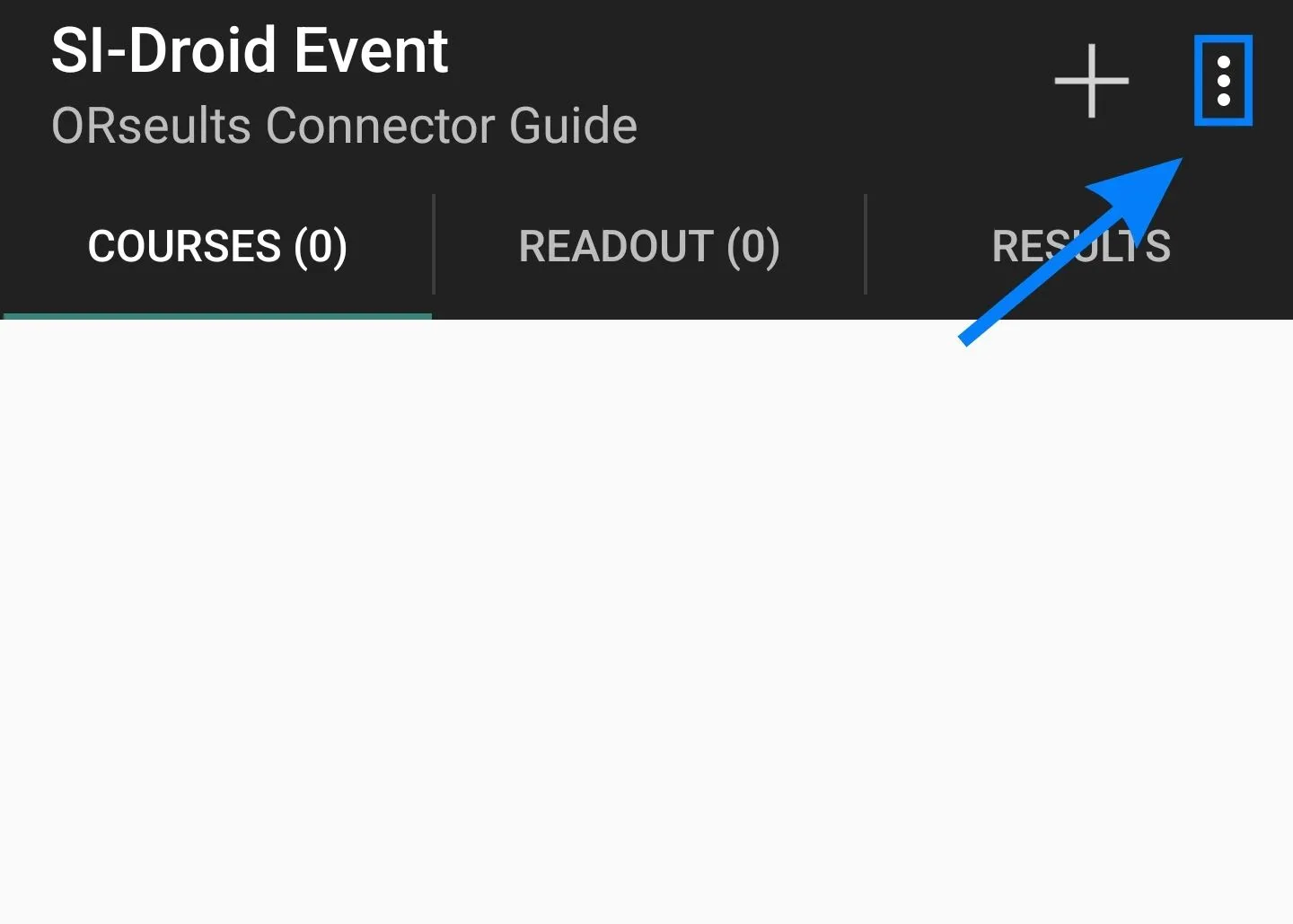
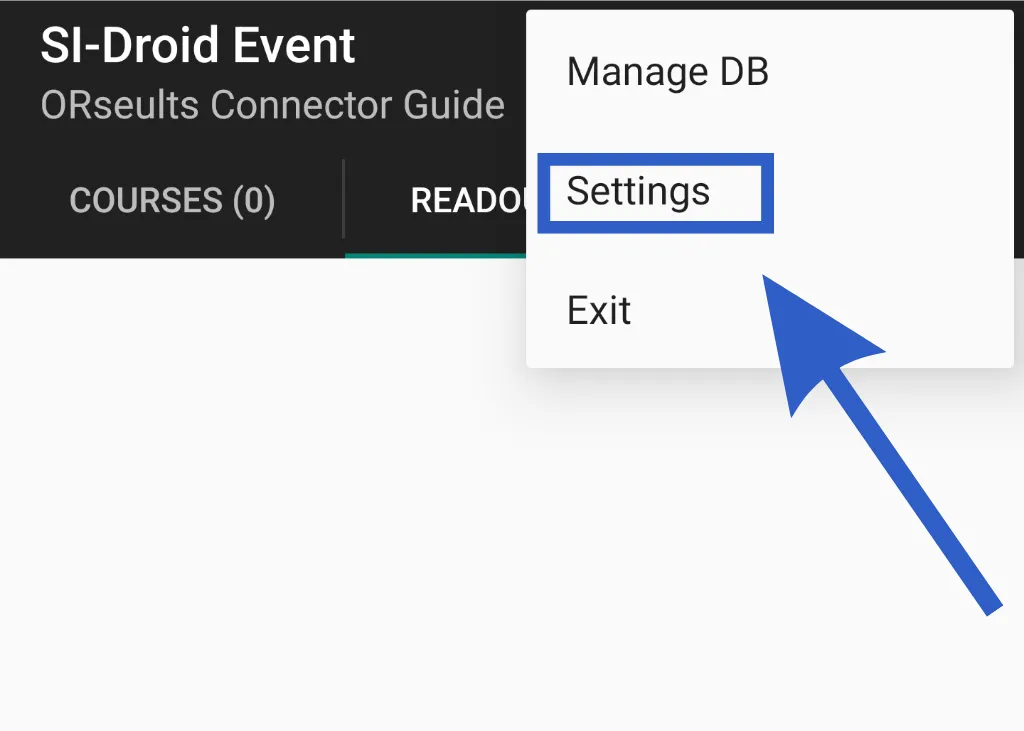
SI-Droid Eventclick on the three dots in the upper right corner and tapSettings -
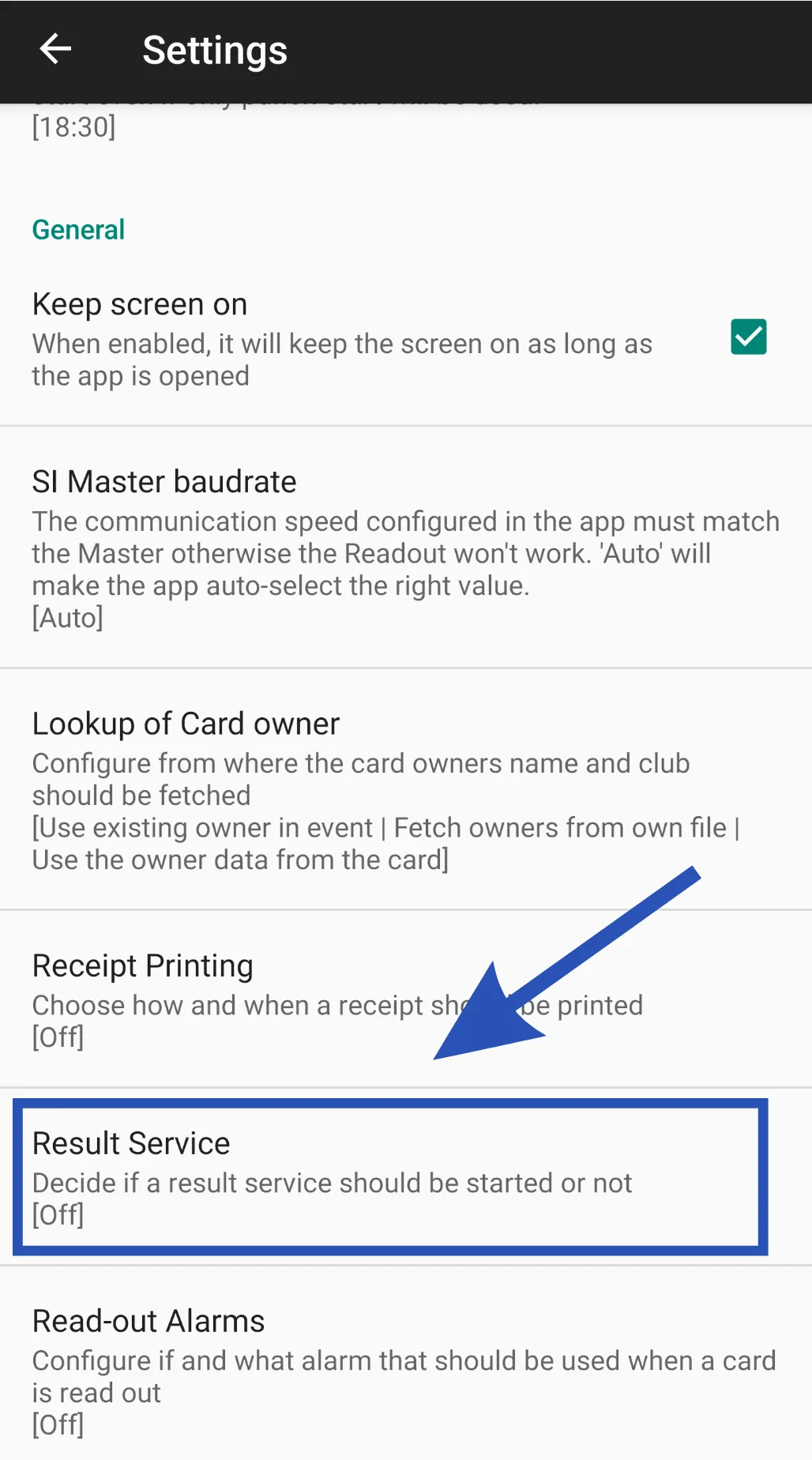
In the
Settings menuscroll down and click onResult service -
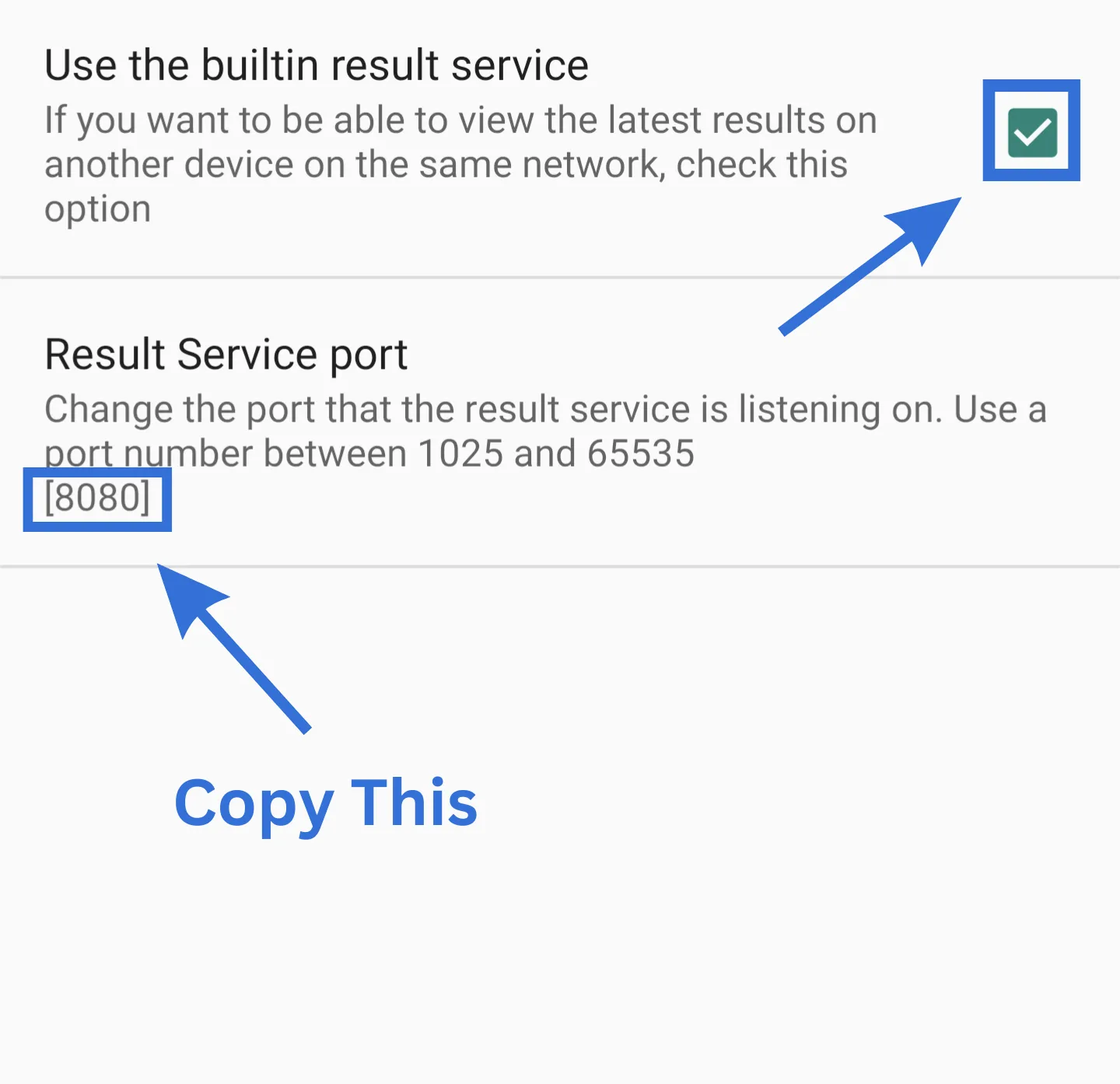
Tick the
Use the builtin result serviceoption -
Copy the
Portin theResult Service portsection


3. Connect result service to OResults and start uploading
Section titled “3. Connect result service to OResults and start uploading”-
Open the
SI-Droid Connectorapp and confirm Android permission -
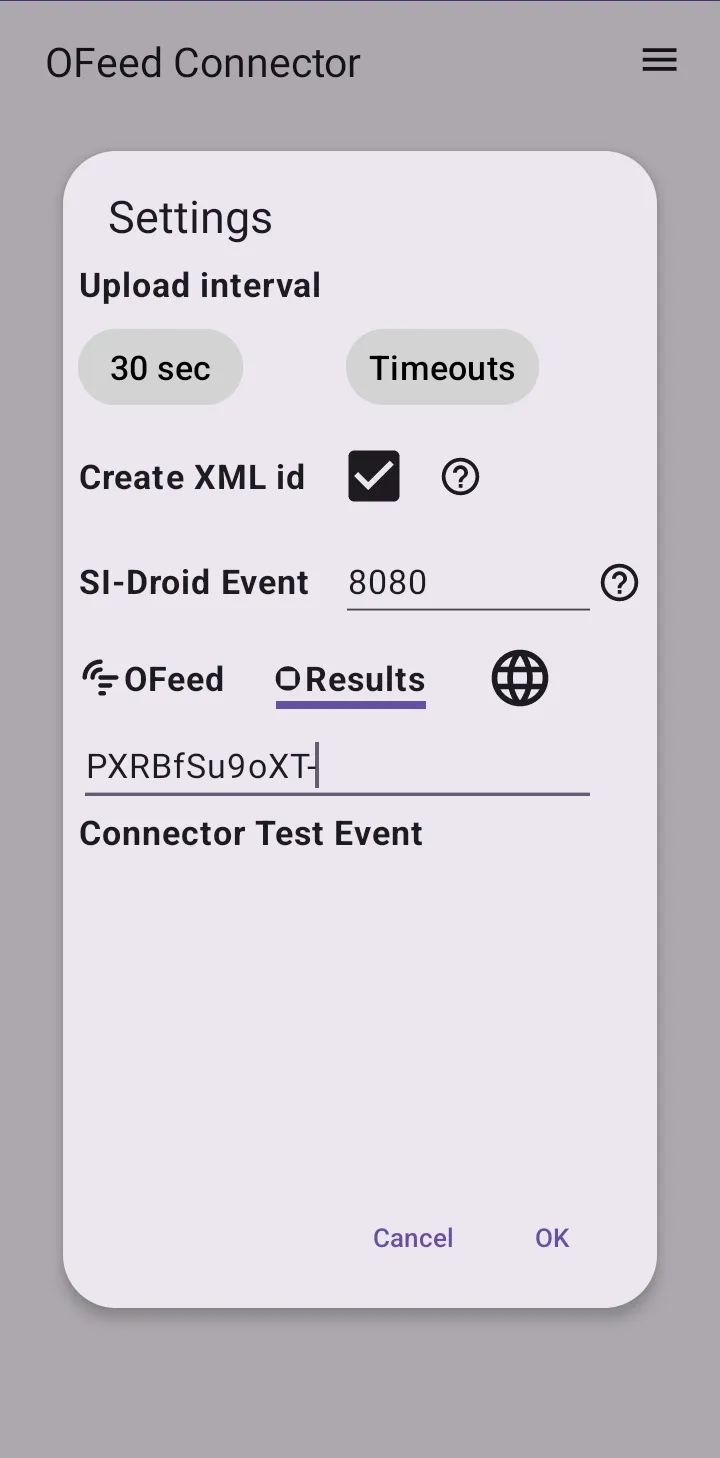
Open
Settingsin the upper right corner -
Switch to
OResultstab -
Choose the
Upload interval, default is 30s -
Paste both the API key and the
Portinto their respective input fields, the event name will appear immediately after entering the key. Or use Copy in the Share section of the event’s Event & Access page — the copied link automatically updates the API key when opening the app
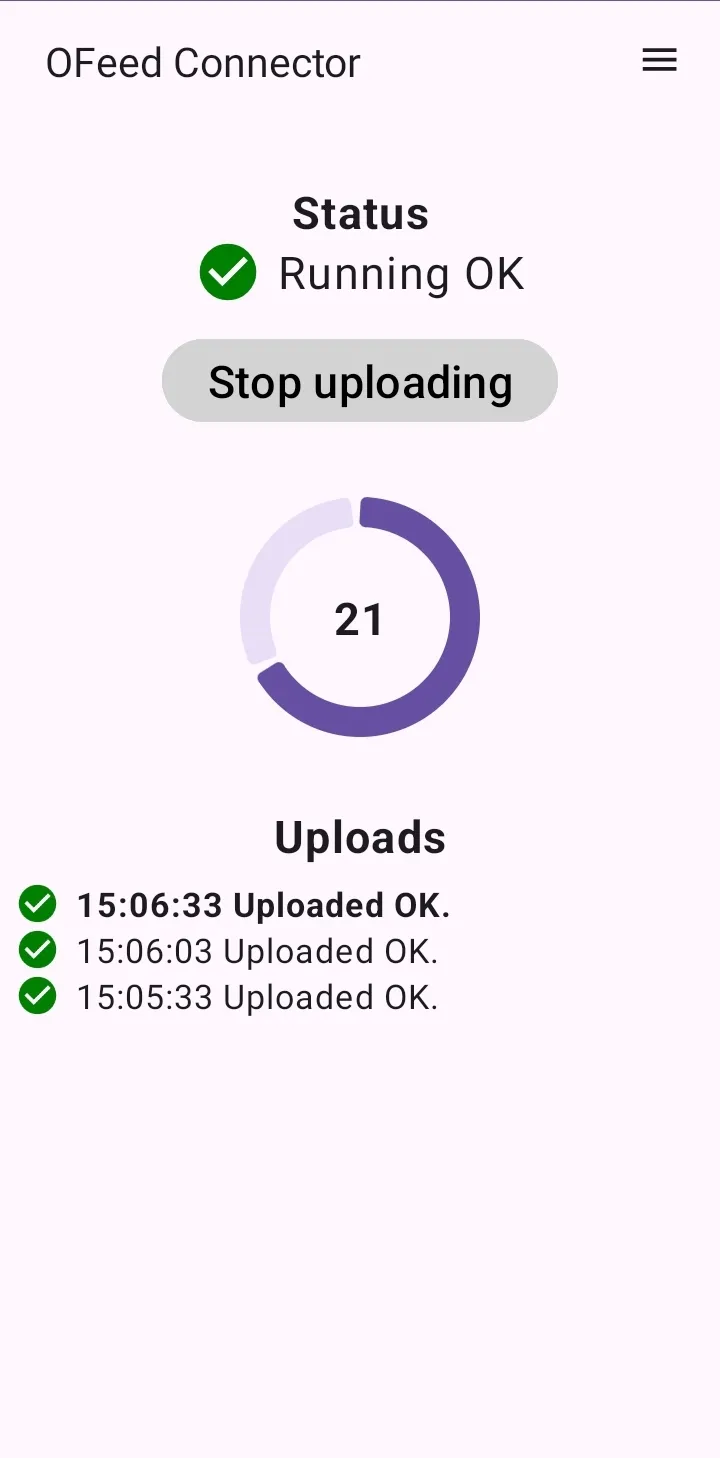
-
Click the
Start uploadingbutton and the uploading will start!

Detailed log is available in the menu under Show log or HTTP log options.
4. Share event
Section titled “4. Share event”- use
QRin the Share section of the event’s Event & Access page to print the QR code, or share the event link on your event webpage

5. Check out OResults.eu
Section titled “5. Check out OResults.eu”- scan QR Code and follow how your buddies, rivals, clubmates or family are doing
Advanced settings
Section titled “Advanced settings”1. More columns / online controls
Section titled “1. More columns / online controls”Additional columns/data can be added (will be filled in after the read-out) to the screen after importing courses and selecting online controls (fake ones) on the Online controls page of the event editor.
This selection:

results in (examples of different classes):

instead of basic:

2. Upload start list
Section titled “2. Upload start list”Creating a start list with a mass start in an external program (QuickEvent, MeOS, OE12, …) and then manually uploading it to OResults will allow you to view all the competitors who should start, so you can see who hasn’t read-out yet.

3. Add online controls
Section titled “3. Add online controls”Using Bluebox Mobile app you can even more improve the result service at your event with a real online control.
Support
Section titled “Support”In case of any issue do not hesitate to contact official OResults support at tech@oresults.eu in Czech or English.