

Following an event
Every event in OResults is listed the same way and opens the same way, so once you can read one row you can read them all. This page covers finding the race you are after, reading the state its row is in, and knowing which part of the event page answers which question.
Finding an event
Section titled “Finding an event”Featured is the OResults home page. Under the pictures of the three products it lists the races of Today, then Recent — the past week — and Upcoming, the next three days, nearest race first. It carries no filters: it is the shortest path to a race happening right now.
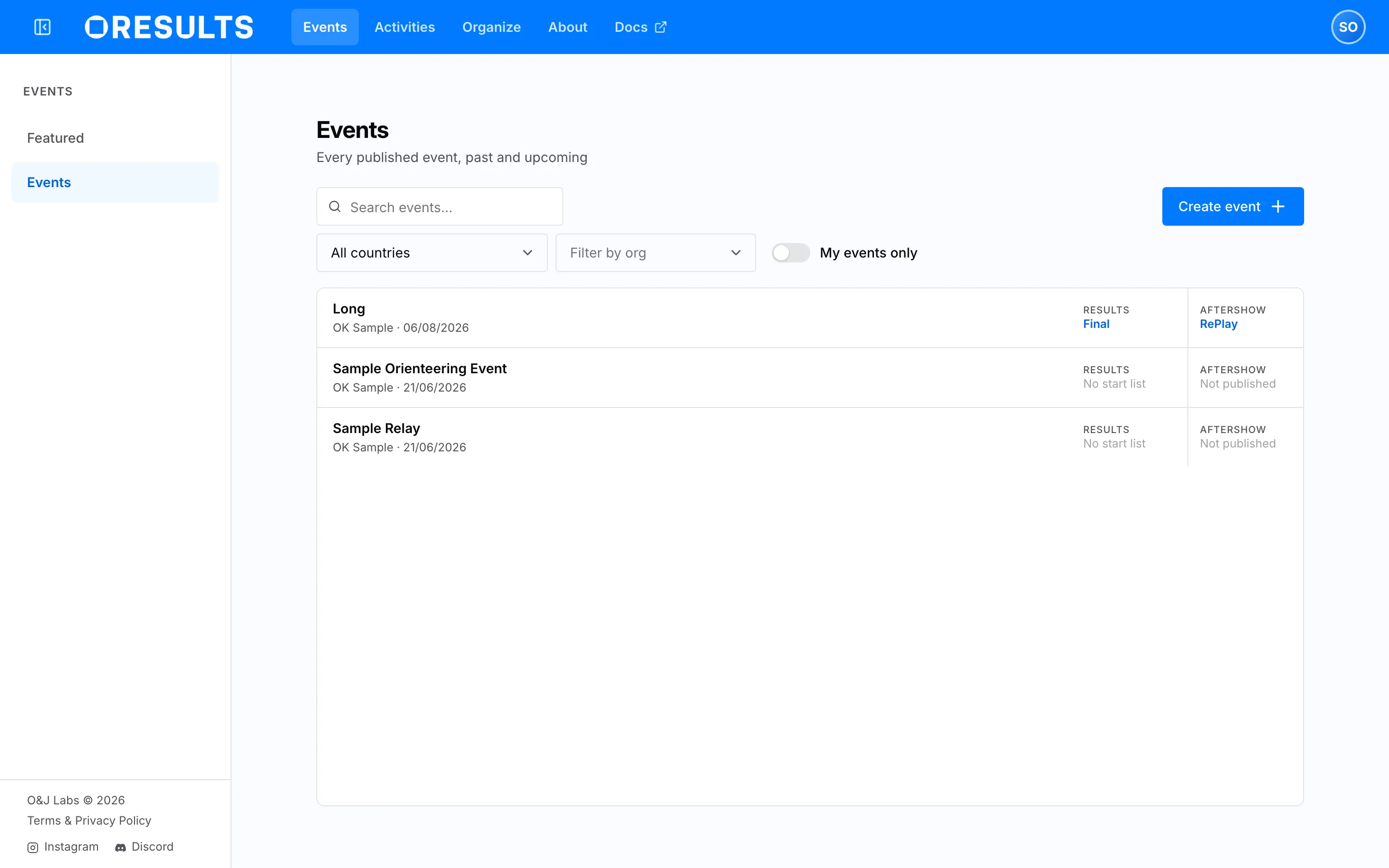
Events is the whole list: every published event, past and upcoming, most recent first. The search box narrows it as you type and matches an event’s name, its place, its organizer and its date. Beside it, the country selector offers only the countries the list actually holds, and All countries clears the choice again.
My events only swaps that list for the events you organize, including any that are not publicly listed. It needs an account: signed out the switch is dimmed and takes you to the sign-in page instead of turning on. With it on, each row gains a third region, Manage — Edit on an event you may change, View only on one that was shared with you read-only. Signed in, a Filter by org selector appears beside the switch and narrows either view to the events of your organizations — see Organizations.
The switch, the country and the organization choice are kept in your browser rather than in the address, so they are still set the next time you open the list on that device. The search box is not — it starts empty every time.
Reading an event row
Section titled “Reading an event row”A row shows the country flag, the event’s name, and under it the place and the organizer, followed by the date on every list except Featured’s Today. To its right sit two regions, each naming one surface of the event, stating where that surface stands, and opening it. Selecting the name or the Results region opens the event’s results.
Results says one of:
- Start list: the start list is loaded and no result or punch has arrived yet.
- Live, in red with a pulsing dot before it: results or punches are arriving and the event has not reached its end time.
- Final: the event’s end time has passed.
- No start list: no start list has been uploaded yet, so there is nothing to open.
Aftershow says one of:
- RePlay: the replay is published and open, and the region opens it.
- at 20:00, or on 7 Aug for a later day: the organizer has scheduled the replay to open then. The region announces that moment and stays inert until it comes, so there is nothing to click yet.
- Not published: no replay is open and none is announced — a replay the organizer has not published is not announced at all.
A region with somewhere to go reads as a link and lights up under the pointer; one without is plain gray text, so a row never offers a control that leads nowhere. The Upcoming list on Featured drops both regions altogether — a race that has not been run has neither results nor a replay — and its rows still open the event, where the start list appears once it is loaded.
What an event page contains
Section titled “What an event page contains”An event link lands on the Results view, and three tabs above the table divide it:
- Results follows one class at a time, from the start list through the live standings to the final list with its split times. See Reading the results.
- Live feed reads the same race by time rather than by class, with the latest punches at the top. See Live feed.
- Club collects one club’s runners from all of their classes into a single table. See Club results.
The event’s own menu holds one more view beside Results: the Aftershow, the post-race analysis. It has two tabs of its own: RePlay, which draws each runner’s route across the map as they ran it, and Splits. It opens when the organizer publishes it, which is the moment the row’s Aftershow region announces. See Aftershow.