

Set up an event
An event is created from the Events page and configured on the event editor’s Event & Access page: its name and date, what the public can see, the link you hand out, the key your timing software uploads with, and who else can reach it.
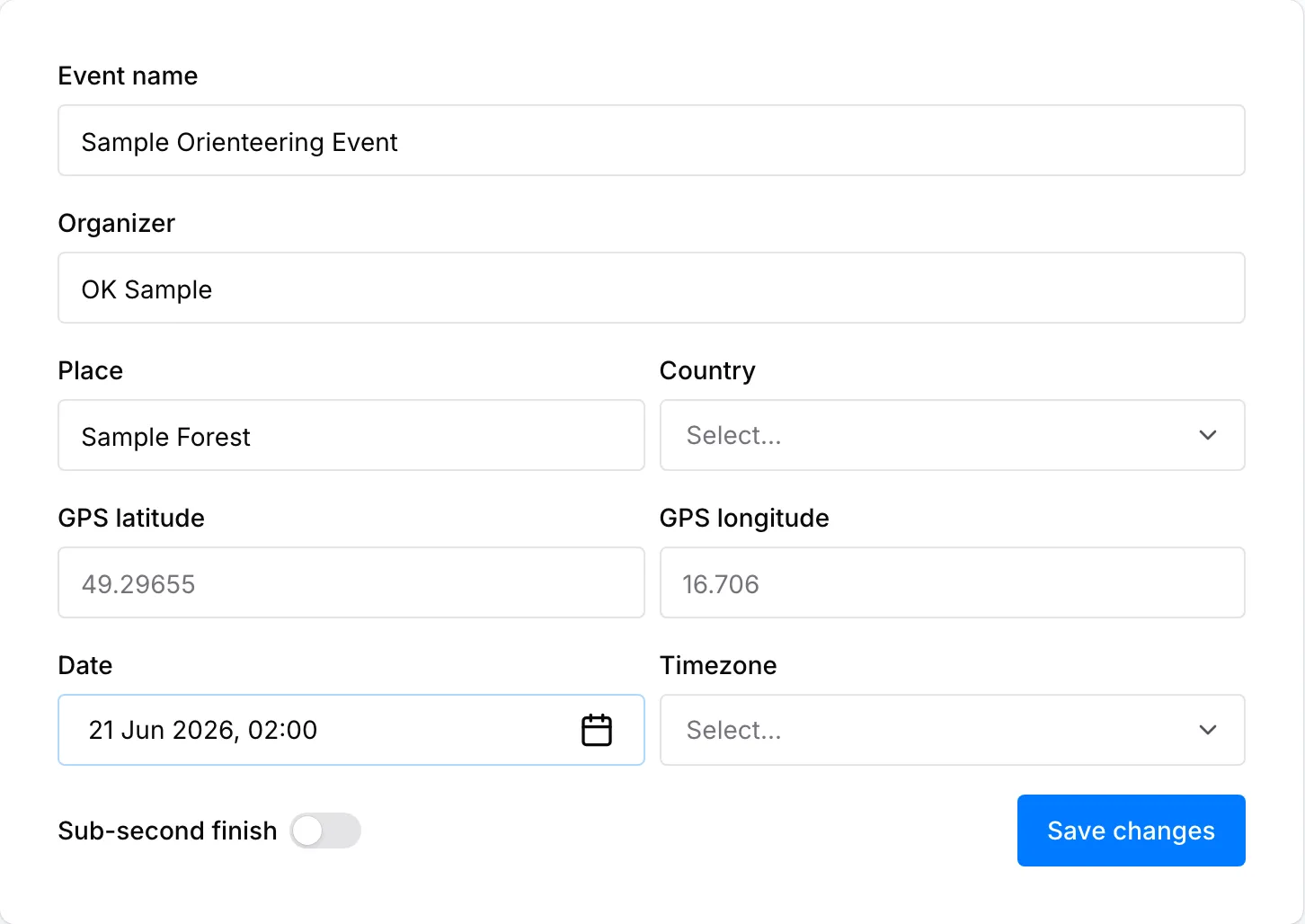
Creating an event
Section titled “Creating an event”Create event on the Events page opens the New Event dialog. Fill in the details and click Create: OResults saves the event and opens its editor on the Event & Access page. Every field can be changed afterwards, so an event created with a working name and an approximate date is a fine place to start.
Event info
Section titled “Event info”The event’s basic information sits in the left-hand column:
- Event name and Organizer
- Place and Country
- GPS latitude and GPS longitude — where the event sits on the map
- Date and Timezone — the timezone start and finish times are read in
- Sub-second finish — turn it on when the timing is finer than whole seconds
Save changes commits them, and stays disabled until there is an edit to save.
Public access
Section titled “Public access”What the public can see is one choice between three:
- Nothing — the event is not listed, and its link works only for the people under Access
- Results — results are public and the event is listed publicly; the Aftershow stays private
- Results + Aftershow — both are public, and the event is listed publicly
A line under the choice spells the state out in words — what is public this second, what is still to come, and whether the event is listed.
Open the Aftershow later… schedules the replay instead of opening it now. Pick a date and time and the Aftershow opens by itself at that moment, with nobody at a computer; results stay exactly as public as they already are in the meantime. Once a release is scheduled, the row it will land on carries its time, the button becomes Change when it opens…, and Cancel beside it drops the schedule. Changing the visibility choice while a release is pending asks you to confirm first, because it either brings the release forward or cancels it.
Event link is the event’s public address. Copy puts it on the clipboard, and QR prints a sheet carrying the same link as a QR code, for a poster or the entry desk. The link works whatever What the public can see is set to — that setting decides who gets past it, not whether the link exists.
Automation
Section titled “Automation”API key is the credential your timing software uploads with, so start lists and results reach OResults during the race without anyone coming back to this page. Copy it with the button at the end of the field.
MeOS, QuickEvent, OE12, SI-Droid Event and OResults Connector each have a page covering how to connect them; Public API covers uploading from software of your own.
Access
Section titled “Access”Access is who can reach the event besides the public. It has two lists.
The first is headed with the club the event belongs to, and holds the people who reach it through that club. Each carries a role: Owner — full control, including deleting the event; Editor — event settings and uploads; View Results + Aftershow; or View Results. Add member gives one of the club’s members access to this event, and the link beside it opens the club’s own settings, where a role granted once applies across every event the club runs. An event that belongs to no club offers Connect to an organization instead — a choice that cannot be undone yet, so it confirms first.
Guests is everyone else. Create invite link produces a link that carries a role and, if you set one, an expiry; Copy link hands it out and Revoke withdraws it. A guest granted access this way appears in the Guests list with the role the link gave them.
Danger zone
Section titled “Danger zone”Delete event expands to say what it costs: all of the event’s data goes, and the action cannot be undone. The button underneath asks you to confirm once more, and OResults returns you to the Events page.
The rest of the editor
Section titled “The rest of the editor”Start lists, results, courses and maps go up on the editor’s File upload page — see Uploading event files. Pairing the Blueboxes that carry punches to OResults live happens on Online controls — see How to set up an online control. What an event costs to run, and whether this one owes anything, is on Billing — see Event payment.