

Bluebox Mobile app
Read these instructions before using Bluebox Mobile app.
Required equipment
Section titled “Required equipment”- 1x device with Android and internet connection
- 1x USB to micro USB / USB-C adapter based on your device
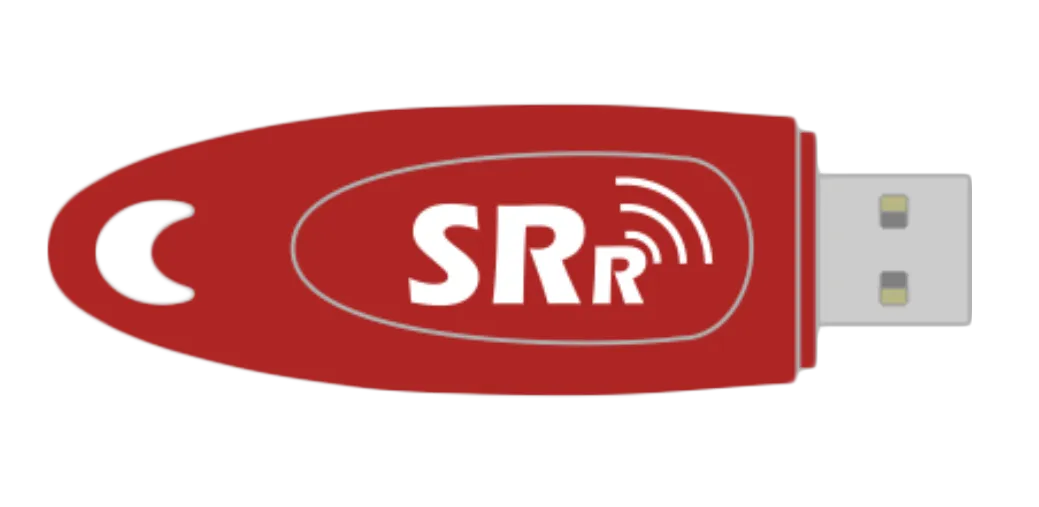
- 1x SPORTident USB dongle
Before the event
Section titled “Before the event”Create a new Bluebox Mobile device
Section titled “Create a new Bluebox Mobile device”You can create a new Bluebox Mobile device under Organize → Devices, in the Bring your own device section.
Install the app
Section titled “Install the app”The latest version of the Bluebox Mobile app can be found in the Google Play Store.
Set up the app
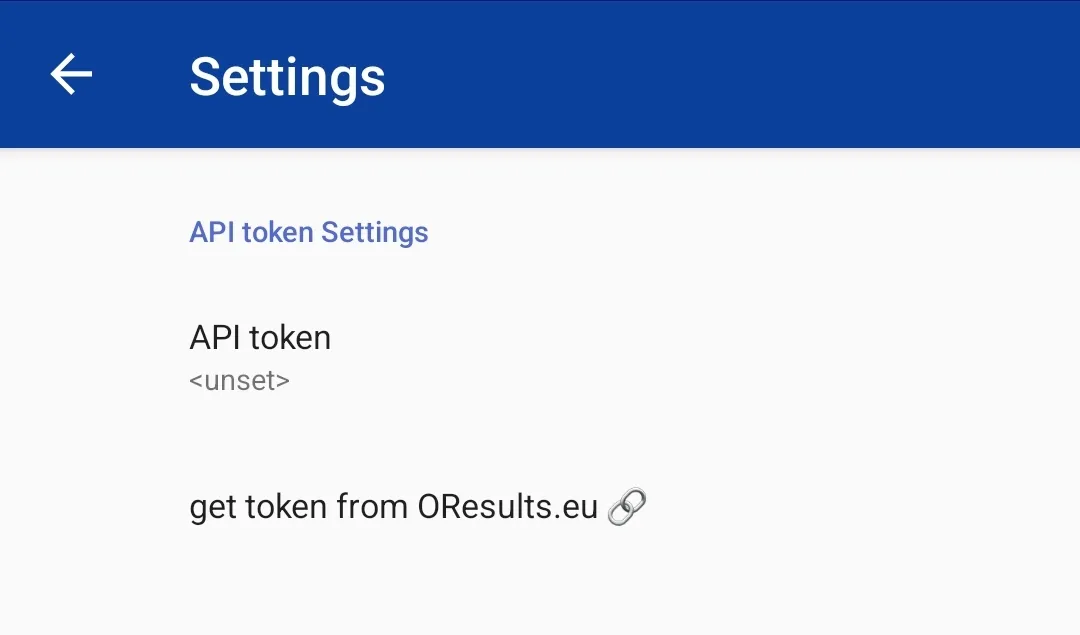
Section titled “Set up the app”The first time you start the app, enter the app settings and fill in the API token.
Connect the USB dongle
Section titled “Connect the USB dongle”Connect the SPORTident USB dongle to your device using a USB to micro USB / USB-C adapter of your choice.
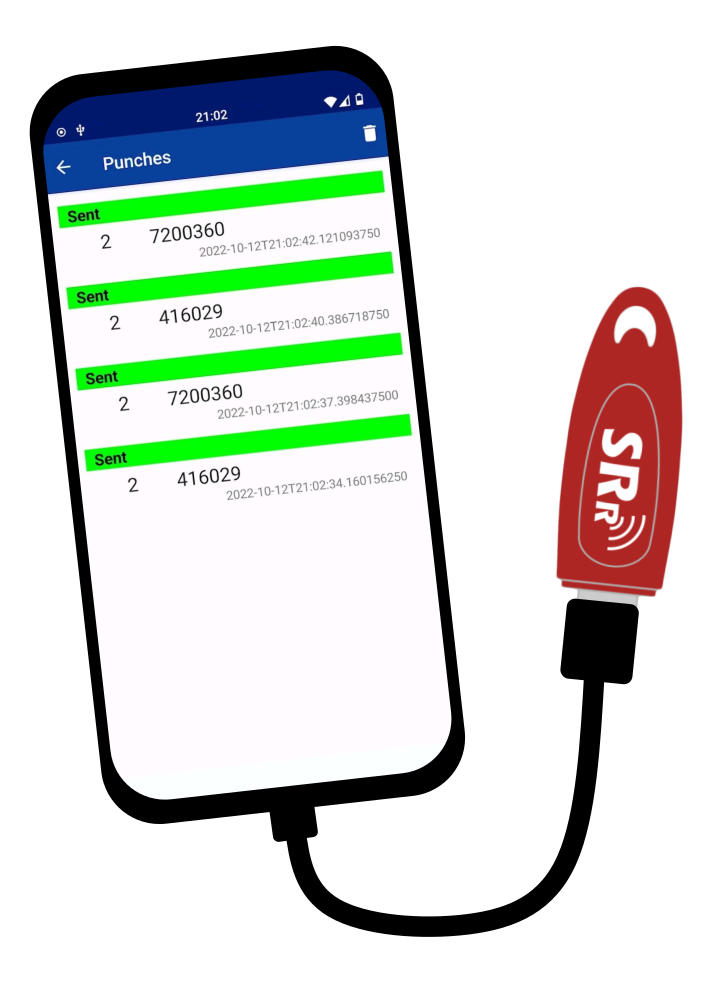
- App connects to the SPORTident USB dongle automatically but make sure you accept all needed permissions (and check the “always” button) so the dongle can auto re-connect when the contact is loose.
- If you deny the app the location permissions, signal strength will not be sent to the OResults service and will be missing in the dashboard.
- App prevents the phone entering sleep mode. Do not leave the app running in the background if you are not using it, it will drain your battery.
- Device screen shows incoming punches (green) and dongle connection status messages (yellow). Punches tab displays saved punches and their send / not send yet status.
On the day of the event
Section titled “On the day of the event”Placement of the device
Section titled “Placement of the device”Monitoring
Section titled “Monitoring”See Devices.