

Reading the results
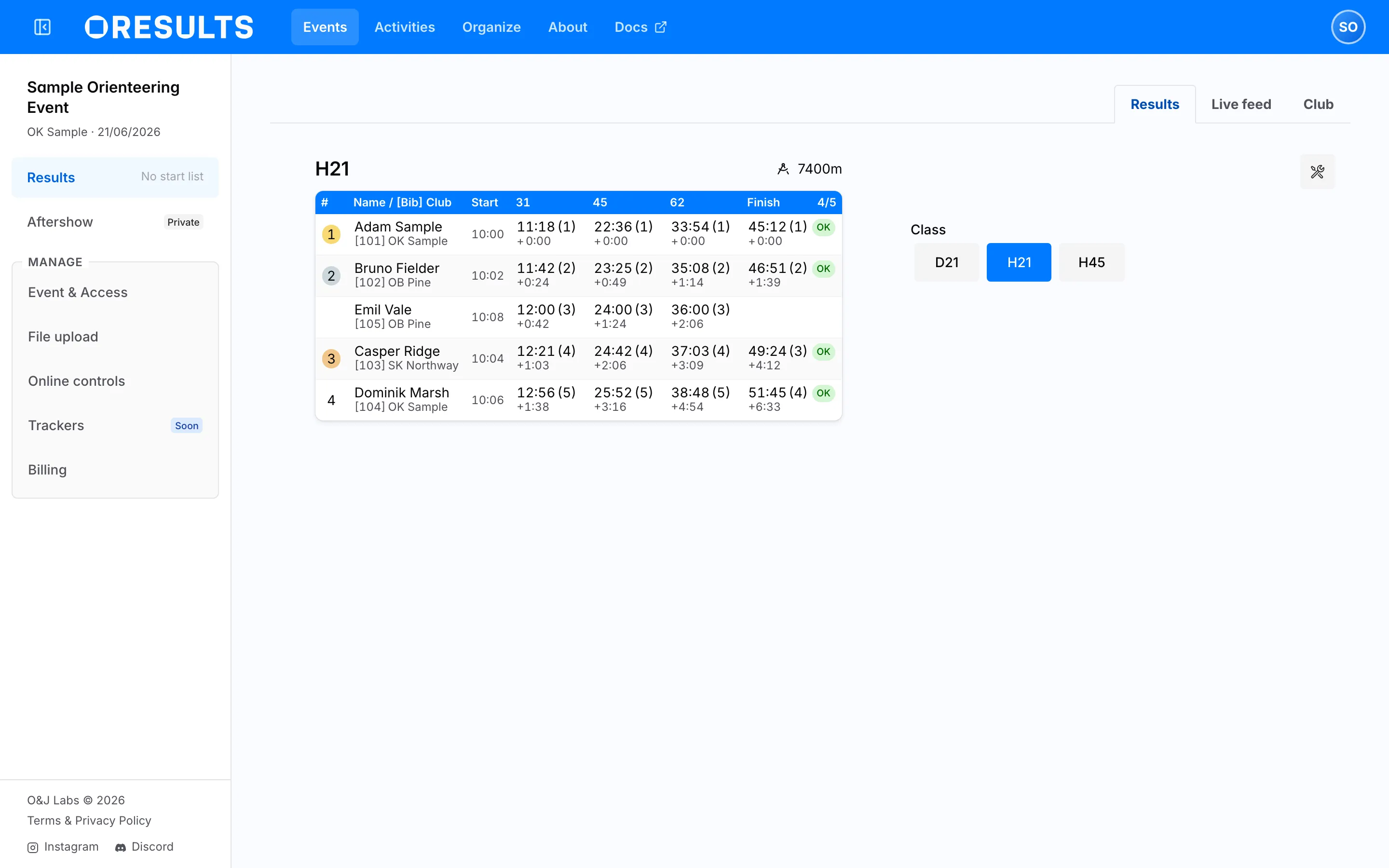
Open Results to find out how one class is going: who starts when, who is still out on the course, who has finished, and how far behind the leader each runner was at every control. It is the view an event link lands on, and it is the same table all day — a start list before anyone starts, live standings while the race runs, and the final result list afterwards.
Pick a class
Section titled “Pick a class”The table shows one class at a time. The class buttons sit beside the table on a wide screen; on a narrow one they live in a panel you open with the button showing the current class.
Which class you get:
- Arriving without a class in the address, OResults selects the class with the most runners.
- A link that already carries a class —
?class=H21&leg=2— opens that class instead. - In a relay, the legs of one class are grouped into a single block and you pick the leg by its number.
Choosing a class writes it into the address, so the link in your address bar always reproduces exactly what you are looking at.
From start list to final results
Section titled “From start list to final results”Before the organizer publishes anything, the event shows Start list not yet published and there is no table yet.
Once the start list is loaded, every runner has a row with a start time and empty control columns. As punches arrive from the online controls, times fill in from left to right, ranks are recalculated, and rows move up and down the table as the standings change. A row whose latest punch arrived in the last two minutes is highlighted, so a glance across the table shows you the most recent arrivals.
After the finish readouts are imported the table stops moving, the ranks are final, and the finish column carries each runner’s status.
A class with no entries shows This class has no runners in place of the rows.
What the columns mean
Section titled “What the columns mean”| Column | Holds |
|---|---|
| # | The runner’s current rank in the class. In a relay leg, an arrow next to it shows how many places the team gained or lost against the previous leg. |
| Name | The runner’s name, with a flag when their country is known. |
| Club | Their club, or the team name in a relay. Selecting it opens that club on the Club tab. |
| Bib | The bib number. Present only when at least one runner in the class has one. |
| Start | The start time of day, in the event’s own time zone. Relay legs after the first have no start column. |
| one per control | The runner’s split time at that control — see below. |
| Finish | The finishing time, and the status badge. Its header also counts how many runners of the class have finished or been given a final status. |
Above the table, the class name is followed by the course length and climb in meters when the organizer supplied them.
In a class that is run without timing, the rank column shows a star instead of a place and no finish time is shown.
Status badges
Section titled “Status badges”The badge in the finish cell says how the run was judged. A runner who is still on the course carries no badge.
| Badge | Means |
|---|---|
OK |
A valid run |
MP |
Missing punch |
DSQ |
Disqualified |
DNF |
Did not finish |
DNS |
Did not start, or did not enter |
NC |
Not competing |
OT |
Over the time limit |
SW |
Sporting withdrawal |
Split times
Section titled “Split times”Each control on the course gets its own column, headed by the control’s name, or by its distance into the course, or by its code — whichever the organizer’s data provides. When a course visits the same code twice, a small number distinguishes the visits.
A control cell holds the runner’s elapsed time from their own start to that punch, the place they held at that control in parentheses, and underneath it the gap to the fastest runner there. Cells the runner has not reached yet stay empty and grayed; while the race is running, the control a runner is heading for shows their time so far, so you can see a runner is overdue rather than merely unpunched.
Selecting a control’s header sorts the whole class by the order at that control; selecting it again restores the normal ranking. The Finish header sorts the same way.
For a chronological view of the same punches — newest first, across every class at once — use Live feed instead.
To watch the same class run rather than read it — every route drawn over the event map, and each control-to-control leg ranked — open Aftershow.
Keep the class when you switch views
Section titled “Keep the class when you switch views”Results and the Aftershow both remember which class you are reading. Moving between them in the event menu carries the class and leg across, so the class you were following is the one that opens — no need to find it again. The Aftershow only offers classes that have a course, so if the class you carried has none, it falls back to the class with the most runners.
On a wide screen, a tools button beside the class list offers three things:
- presentation mode opens a separate results display in a new browser tab, for showing results in the arena.
- open table in popup opens the current table in a small separate window, for keeping results visible next to something else.
- maximize table width collapses the class list, giving the table the full width.